Route feedback by team
Send each app’s feedback to the channel responsible for it. Use separate Flows for iOS and Android.
ReviewBot for Microsoft Teams
Bring app reviews into Microsoft Teams with their rating, text, and source link. Keep product and support in the same conversation when customers need help.
14 days free · No credit card required
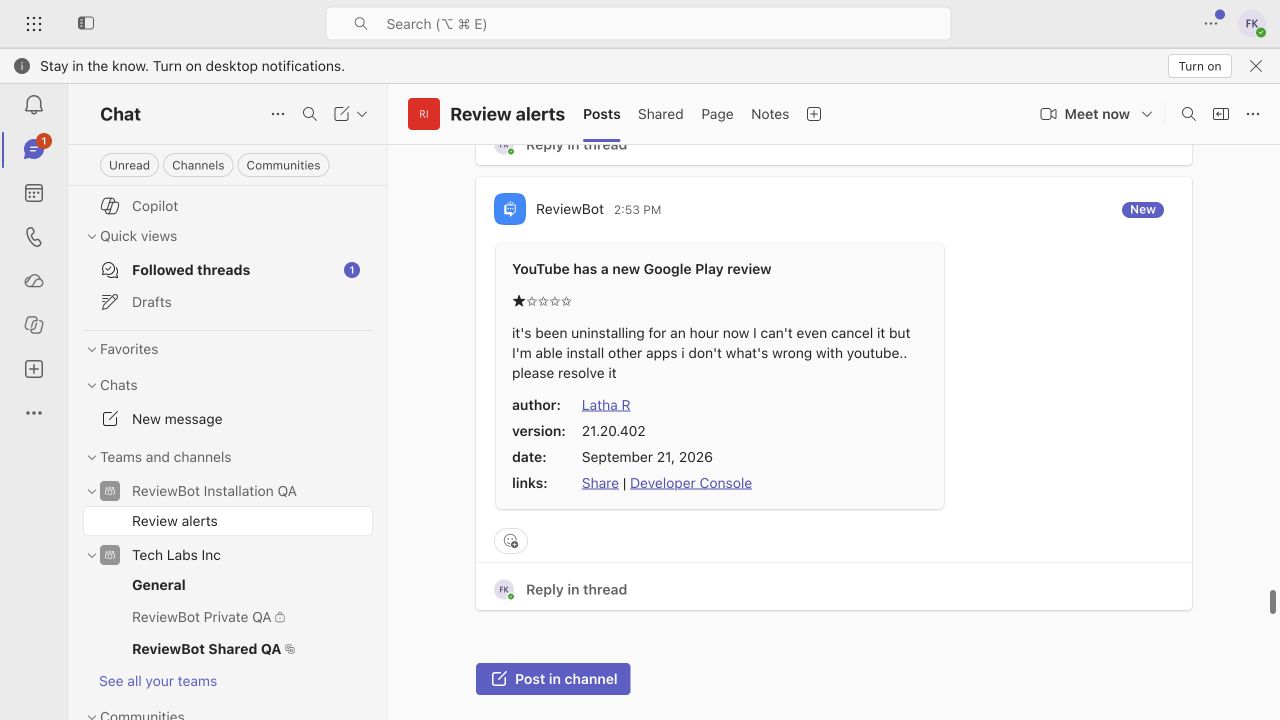
Send each app’s feedback to the channel responsible for it. Use separate Flows for iOS and Android.
Filter app reviews by rating and country or language so each channel gets relevant feedback.
Read the customer’s words and available store details, then open the review for more context.
Choose the team and channel for your review alerts. Your Microsoft 365 administrator may need to allow the app.
Mention @ReviewBot and send setup. Follow the sign-in link, then confirm the channel in your ReviewBot workspace.
Create a Review alerts Flow, choose your source and filters, and select the connected Teams destination. Turn on the Flow and check the setup message.
Flow-based pricing
One app-store listing sent to one Teams channel uses one Flow. Send iOS and Android reviews to the same channel with two Flows.
ReviewBot’s Teams app is free to install. Continued review delivery requires a ReviewBot plan after the trial.
See plans and add-onsMonitor App Store and Google Play reviews. You can also connect a Google Business Profile location you manage in a separate review-alert Flow.
The native ReviewBot app connects through Teams sign-in and channel confirmation. You do not need to create or paste an incoming webhook URL for this setup.
Yes, subject to your organization’s Teams policies. Enable ReviewBot for that channel where required, then run setup there. Shared-channel participants may need access approved by both organizations.
Teams delivers review alerts and source links. It does not publish replies from the conversation. Use a supported reply workflow separately.
No. Turning on a Flow checks delivery with a setup message. Matching new and updated reviews arrive as they are collected; full review history is not bulk-delivered.